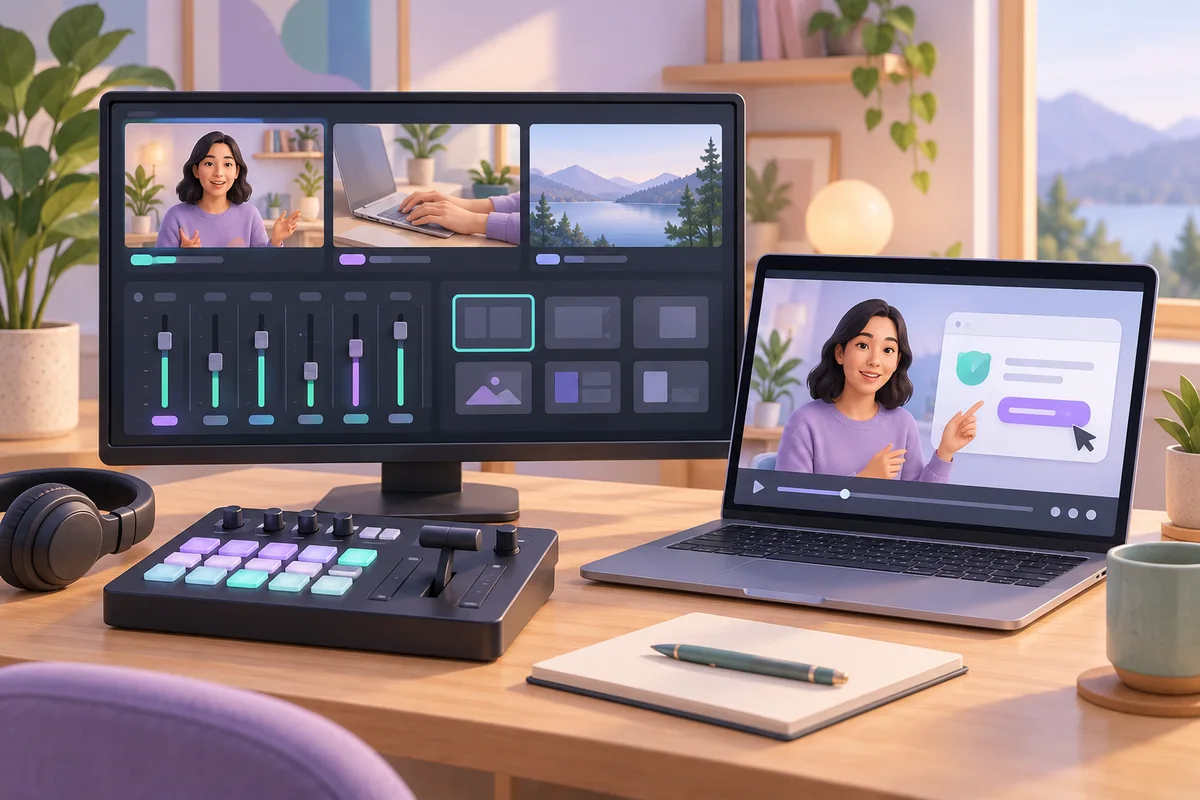
Choose OBS when a lesson needs several carefully arranged sources and repeatable control over the recording. Choose ScreenPal for a short narrated demonstration when its simpler capture and editing tools cover the job. ScreenPal's free desktop workflow has a 15-minute recording limit and does not include computer audio, so a long lesson with playback needs a different setup or a paid plan.
OBS gives you a production layout to build
OBS is free, open-source recording and streaming software for Windows, macOS and Linux. Its feature page describes scenes assembled from sources such as windows, webcams, images and text. Scenes can be switched with transitions, while Studio Mode lets you preview a scene before showing it live. These are useful controls when the explanation moves between different visual materials.
The quick-start guide begins with an automatic configuration wizard, then adding sources and choosing audio devices. It distinguishes display or window capture on Windows and Linux from the macOS screen-capture source. Its audio section tells you to inspect the mixer and select devices manually when the wrong input is being captured.
A scene is best treated as a lesson layout rather than a collection of everything the computer can show. Put the application being explained in the main area. Add a camera only if seeing the presenter contributes something. Name the microphone input clearly enough that you can recognize it before the next recording, particularly after changing a headset.
ScreenPal makes the short demonstration a clear use case
ScreenPal's recorder page lists screen, webcam and combined capture, microphone narration, trimming and drawing tools. It says the free recorder needs no account and adds no watermark. Once downloaded, it can record offline. The same page places Mac and Windows system-audio capture among paid features. Recording your own voice and capturing sound played by the computer are therefore separate purchasing questions.
Its English plan page displayed Deluxe at $4 per month, paid annually, and Max at $10 per month, paid annually, on the review date. Those are the dollar prices shown on that page, not Danish-krone or euro checkout quotes. Deluxe lists unrestricted recording duration and automated captions. The free recorder permits recordings of up to 15 minutes each.
There is a documentation conflict about free hosting. The recorder page describes unlimited uploads, but the plan comparison's Free column specifies 10 hosted videos; the pricing FAQ repeats the unlimited wording. Treat 10 as the planning limit until ScreenPal confirms the allowance for your account. Saving recordings locally and hosting them online are different activities.
Match the recorder to the teaching task
| Requirement | OBS | ScreenPal |
|---|---|---|
| Several prepared visual layouts | Scenes, sources and transitions | Screen/webcam capture with drawing tools |
| Software charge for capture | Free and open source | Free recorder; paid additions |
| Short spoken walkthrough | Requires source setup | Free narration and trimming |
| Computer playback on Mac or Windows | Configure the relevant audio capture | Paid feature |
| Long recording | Plan computer resources and output settings | Free limit is 15 minutes per recording |
| Video delivery | Choose a recording container compatible with the next tool | Local export or hosting, with the hosting discrepancy above |
Consider a hypothetical tutor explaining how to submit an assignment. The explanation takes six minutes and uses one application with the tutor's voice. ScreenPal's free workflow is a sensible first choice: the recording fits its stated time limit and does not need computer playback.
In a second hypothetical lesson, an instructor alternates between slides, a camera view of an object and an application demonstration. OBS is the stronger recommendation because prepared scenes directly match that need. Set them up before teaching instead of improvising window arrangements while speaking.
If the short tutorial also contains a clip whose sound learners must hear, reassess the audio requirement. Its short duration does not make computer audio part of ScreenPal's free microphone feature. Choose a paid option or a properly configured OBS recording rather than assuming narration covers both sound sources.
Ten minutes to inspect the actual recording
Use minutes one and two to define the visible area and the microphone. Close unrelated windows and put a sample label on screen at the size learners will actually see. Use a practice document rather than exposing private information in a configuration test.
In minutes three and four, record a short explanation, then play an authorized audio sample from the computer if that sound belongs in your lesson. Say aloud when each source is being tested. A moving level meter helps diagnose input, but the saved file remains the evidence of what was recorded.
Use minutes five and six to switch the planned layout or draw attention to a control. Open a menu and move the pointer to a small setting. The test should include the awkward moment in the real lesson, not only a large title slide that any layout could display clearly.
Spend the final four minutes opening the saved recording outside the capture preview. Listen for both intended sounds. Inspect the menu label at the intended viewing size and check that your camera does not hide the action. If the label is unreadable, enlarge the application content and try that step again before recording the full explanation.
A usable file matters more than a successful preview
OBS's format guide distinguishes resilient containers from ordinary MP4/MOV files that require finalization. It describes MKV as recoverable after an interrupted recording, and also documents fragmented and hybrid MP4/MOV options. Some editing workflows may require remuxing. Do not turn that into a guarantee against every failure; choose a documented format your next application can open.
The same guide is inconsistent about defaults: its introductory text calls MKV the default, while its table labels hybrid MP4 or MOV as defaults by platform. Inspect the format actually selected in your installed OBS version instead of relying on either label alone.
ScreenPal documents local exports including MP4, AVI, FLV and GIF. For a spoken lesson, check the exported video and its audio rather than choosing a format merely because it appears in a list. Preserve the original recording before making a smaller delivery copy.
Neither a crisp screen image nor an automatic caption proves that the explanation is complete. A sentence such as “move this here” needs the corresponding visual action. If you want a standalone written guide, rewrite that sentence with the actual control and destination names.
Add Notibo when spoken notes are useful alongside video
Notibo can turn an authorized audio or video upload of up to 50 MB into a transcript with a summary and key points. It does not edit video or preserve cursor movements as written instructions. Keep the visual lesson and use text as a second route into the material.
For audio capture on a computer, Notibo supports browser-tab sound in Chrome and Edge, with system sound also available on Windows. Safari and Firefox provide microphone capture only. It is not a substitute for the screen layouts described above, and no bot joins a call.
Notibo processes in the cloud, using EU storage and US processors. Its transcript has no timestamps and does not promise speaker labels. Choose OBS or ScreenPal for the visual deliverable first; add Notibo when reviewed notes from the spoken explanation would help the reader learn.
Related comparisons
- Camtasia vs Descript: edit a tutorial or its spoken story?
- Premiere vs Subtitle Edit: where should you finish captions?
This is a documentation-based comparison by Notibo, checked on 20 October 2026, not a measured accuracy benchmark. The examples are suggested trials, not reported test results.