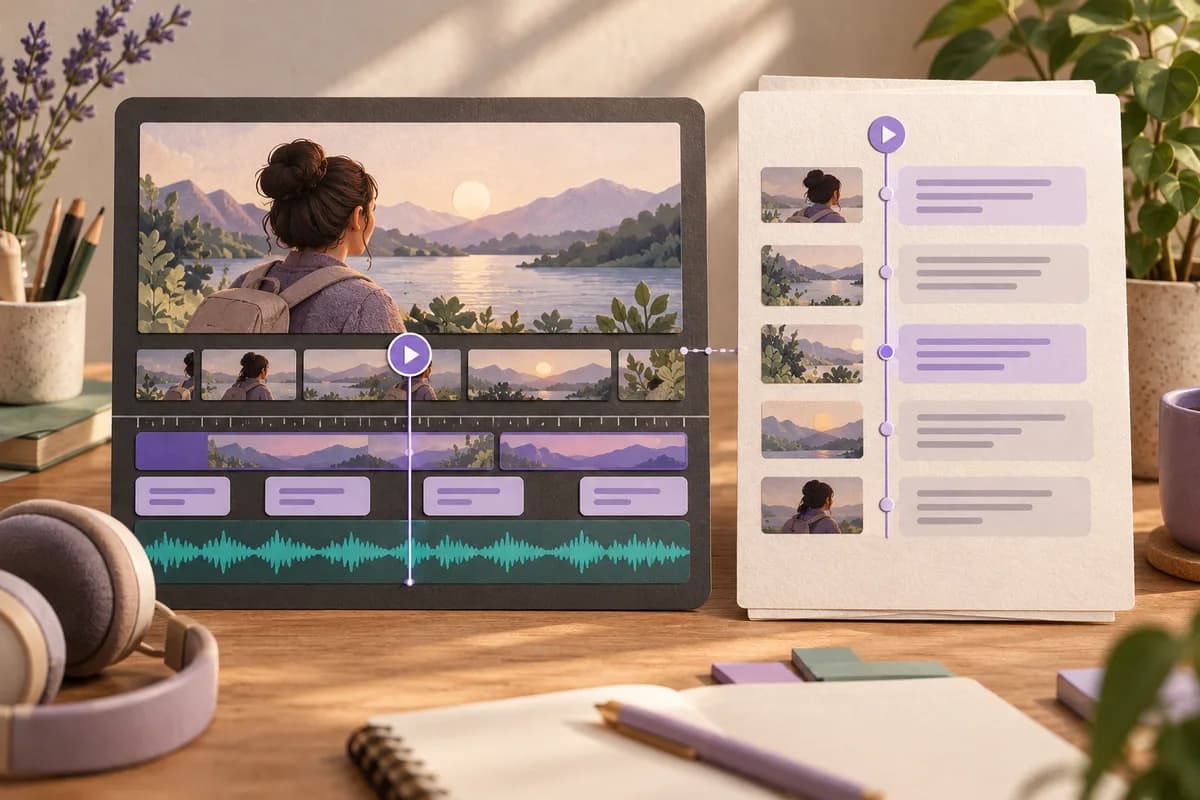
Finish captions in Premiere when you already own the video edit and need to coordinate wording with its final cut. Choose Subtitle Edit when the main deliverable is a subtitle file and detailed timing work belongs outside the video project. Both offer speech-recognition routes, but a generated transcript is only the beginning of a usable caption track.
Premiere keeps the job close to the edited sequence
Adobe's transcription instructions let you choose the spoken language, separate speakers and analyze either dialogue-tagged clips or a specific audio track. You can limit processing to marked In and Out points.
English is included with the Premiere installation; Adobe documents downloading other language packs through the Text panel. Its UK Speech to Text page lists Danish, German and English among the supported languages and says transcription works offline from version 22.2 onward after the necessary pack is installed. Recognition language and caption translation remain separate choices.
That UK page displayed Premiere Single App at £21.98 per month including VAT, on an annual subscription billed monthly, when reviewed. Speech to Text is included in the subscription. This is a UK price and commitment, not a euro or Danish-krone quote and not a cancel-any-month price inferred from the monthly figure.
Subtitle Edit gives the caption file its own workspace
Subtitle Edit 5 is a free, open-source, cross-platform subtitle editor. Its documentation includes waveform editing, shifting timings and splitting long lines. This suits work where the words may already be mostly correct but the appearance and duration of individual caption entries need attention.
Its speech-to-text documentation lists local Whisper CPP on Windows, Linux and macOS, alongside online engines such as OpenRouter and Google Cloud Speech-to-Text. Engines and models can require an initial download. Selecting a local application does not mean every engine inside it processes locally; choose the engine according to the permitted handling of your recording.
The same documentation provides an optional English-translation setting and notes that models ending in .en are English-only. For Danish or German captions preserving the original speech, select an appropriate multilingual model and leave translation disabled. A translated sentence is not a faithful original-language transcript simply because it reads fluently.
Subtitle Edit's quality report can flag short display times, overlaps and repeated lines. Treat those findings as prompts for inspection. A report about timing and repetition cannot establish whether a person's name or a technical term was recognized correctly.
Decide who owns the next correction
| Production decision | Premiere | Subtitle Edit |
|---|---|---|
| Existing video project | Keep caption work alongside the edit | Hand over a defined reference video |
| Recognition setup | Downloaded language packs and audio-track selection | Choose engine, model and language |
| Local recognition option | Offline with installed packs in supported versions | Local engines such as Whisper CPP |
| Caption-focused repair | Timing and style within the caption workflow | Waveform, timing shifts and line tools |
| Cost described here | Included with a paid Premiere subscription | Free editor; online engine arrangements are separate |
| Delivery responsibility | Export the intended caption track | Match the file to the agreed final video |
In a hypothetical training production, the editor is still removing pauses and replacing shots in Premiere. Keep the caption work with that editor until the sequence is settled. Sending an early subtitle file to another person creates a moving target if the opening or middle is cut again.
For a different hypothetical assignment, a caption specialist receives a locked interview video and is asked to repair line breaks and timing. Subtitle Edit is the more focused recommendation. Agree on the reference filename and required subtitle format before editing, so the specialist does not unknowingly correct captions for an outdated video.
If you add a new opening, a previously correct subtitle file may become early throughout the rest of the film. That is a timing problem, not a reason to mistrust every recognized word. Diagnose the change before paying for another transcription.
Choose the delivery format before styling
Adobe documents burned-in, sidecar and embedded caption exports. Burned-in captions are rendered into the picture. A sidecar is a separate file delivered alongside the video. These produce different viewing arrangements, so ask the recipient which one is required before spending time on the final appearance.
For SRT sidecar export, Adobe specifies one caption stream per file. Its exporter defaults to the active track, with the lower-numbered track selected if multiple tracks are enabled. When delivering two languages, inspect each export rather than assuming both language versions were included in one SRT.
Subtitle Edit's documentation covers SRT and WebVTT, as well as separate styling tools for ASS/SSA. A list of supported formats is not a promise that every visual choice survives conversion between them. Open the final file in its intended player and judge what the recipient actually receives.
Keep the caption file and the exact video revision together. A clear filename can prevent someone from pairing a corrected subtitle file with last week's cut. Deliver a brief note identifying the language and reference video, particularly when several similarly named versions exist.
A ten-minute rehearsal for the handover
Start with two minutes of preparation: choose a short authorized sequence containing fast speech, an unfamiliar name and a pause. Install the relevant model or language pack beforehand. A download is setup work, not part of judging whether caption editing suits your routine.
During minutes three and four, generate or open the draft. Correct the unfamiliar name against the audio. Check whether the words belong to the intended speaker, but do not mistake an automatically assigned speaker label for verified identity.
Use minutes five and six to inspect reading time at normal playback speed. Split an overcrowded entry at a natural phrase boundary and check the next entry for overlap. Avoid moving an entire sentence merely to make the written paragraph look elegant; the text must appear while the associated speech can be followed.
In minutes seven and eight, export the requested format. For a Premiere SRT delivery, verify the selected language track. For an external caption handover, verify that you are using the reference video agreed with the editor.
Spend the last two minutes playing the export in the destination player. Check the first spoken line, the difficult passage and the ending. This is a short workflow rehearsal, not a complete accessibility assessment or an accuracy benchmark. Before publication, review the remaining video as well.
Notibo is relevant when the output is notes
If your purpose is studying the spoken content rather than publishing captions, Notibo may be the shorter route. It accepts authorized audio/video uploads up to 50 MB and produces a transcript with a summary and key points. Recording-based flashcards and spaced repetition belong to Pro.
Notibo does not provide timestamps in the transcript and does not promise speaker labels. It is not a subtitle editor. You would still need a separate timing workflow to turn its reading text into captions, so do not choose it as a replacement for either editor's caption finishing.
Processing is in the cloud, with EU storage and US processors. Select one main language; language changes within a recording can cause errors. Choose Premiere for continuity with your video project, Subtitle Edit for a focused subtitle assignment, and Notibo when reviewed study notes are the actual deliverable.
Related comparisons
- Buzz vs Subtitle Edit: transcript or finished captions?
- YouTube captions vs Notibo: video access or study notes?
This is a documentation-based comparison by Notibo, checked on 20 October 2026, not a measured accuracy benchmark. The examples are suggested trials, not reported test results.