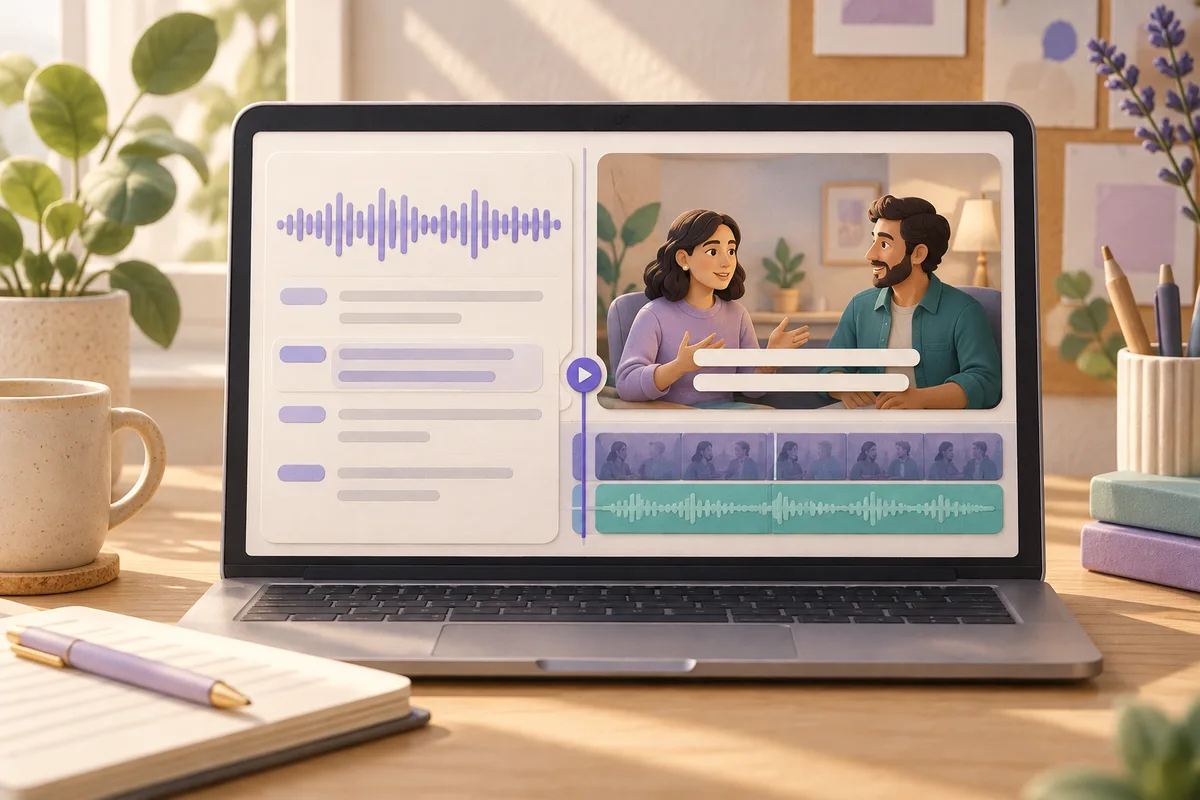
Choose Buzz when your main task is obtaining readable text from recorded speech, with subtitle export available when needed. Choose Subtitle Edit when the deliverable is a caption file that must follow a video accurately. Both can produce recognition drafts, but the final review differs: a transcript needs correct words, while captions also need usable timing and line breaks.
Buzz provides several ways into a transcript
The official Buzz project lists audio and video transcription, live microphone transcription and TXT, SRT and VTT export. Its transcript viewer includes search, playback controls and speed adjustment. Use these controls to inspect the draft.
The Buzz FAQ explains offline use with downloaded models, but also documents an optional OpenAI API connection to a remote server. It states that models ending in .En are English-only. For Danish or German speech, do not choose an English-only model simply because its download is convenient.
Select the processing route before importing sensitive material. Local recognition and a configured remote service are different arrangements, even if you start both from the same application. Download and prepare the local model in advance if you intend to work without a connection. Then rehearse with a harmless file rather than discovering a missing dependency during a deadline.
For a written interview report, export the form the report actually needs. A plain-text working copy may be enough for annotation and quotation review. You need not spend time making every sentence fit a caption box if no video audience will ever see those boxes.
Subtitle Edit treats the captions as the product
Subtitle Edit's documentation describes version 5 as a free, open-source, cross-platform subtitle editor. Its tool index includes splitting long lines, adjusting display durations, shifting timings and waveform editing. These are directly relevant when words must remain readable while the viewer follows a moving image.
Its speech-to-text guide lists local Whisper CPP for Windows, Linux and macOS alongside online engines. Models download on first use. Optional post-processing adjusts timings and splits or merges lines; a quality report flags duration problems, overlaps and repetitions. This is a set of finishing checks, not proof that a person's name was recognised correctly.
Keep the word-review pass separate from the timing pass. First establish what the speaker said. Then decide how that sentence should appear. Otherwise, a later correction may force you to redo the line divisions you carefully arranged around the wrong words.
When a display warning appears, examine its cause rather than blindly accepting a shorter sentence. You may need to divide a long caption or adjust its timing. Removing a qualification just to clear a warning can change the speaker's meaning. The destination's requirements should guide those editorial decisions, not a wish to make every warning disappear immediately.
Compare the deliverables, not the model names
| Requirement | Buzz route | Subtitle Edit route |
|---|---|---|
| Text for a report | Start with a checked transcript and TXT export | Possible, but subtitle finishing may be unnecessary work |
| A caption draft | Export SRT or VTT, then review in its destination | Generate text within the caption workflow |
| Detailed timing work | Plan a finishing stage after recognition | Use the documented timing and line tools |
| Offline recognition | Prepare a downloaded local model | Select a local engine and prepare its model |
| Remote recognition | Optional API route changes where processing happens | Online engines are alternatives to local recognition |
| Final acceptance | Verify the wording against speech | Verify wording, readability and synchronization |
The same engine label does not establish equal results in two workflows. Record which model and language you selected, but judge the actual output. A setup that produces usable text with little revision may suit a report. A setup that exposes caption timing problems may save more work on a published presentation.
Avoid confusing a file extension with a completed task. An SRT file can exist and still contain a wrong amount, an unreadable line or a caption that begins before the relevant answer. Delivery should depend on checking those properties, not merely on the export button having worked.
A hypothetical presentation with a late introduction
Imagine you have permission to caption a recorded presentation. It includes a fast explanation, a pause before an answer and a speaker change. Starting in Subtitle Edit keeps the recognition and caption-finishing work together. Review the fast explanation for readability, and make sure the pause does not reveal the answer in text before it is spoken.
Now suppose somebody adds an introduction to the video after your first caption draft. The captions must correspond to the revised video, not the earlier file you used for recognition. Identify the precise video version in the delivery filename and check synchronization again. This is a proposed precaution, not a reported failure.
If the assignment instead asks for quotations from the same presentation, Buzz can be the more direct starting point. Obtain the text, use the recording to check the quotations and keep any unresolved phrase marked. There is little benefit in polishing screen timing for a document that will be read on its own.
In both cases, preserve the editable working material. A small correction after delivery should not require guessing which video and recognition draft produced the final file.
Run a ten-minute caption acceptance check
Before starting the clock, install the application and obtain any required local model. The exercise concerns the output and does not promise that downloads or recognition finish within ten minutes. Choose a short, permitted video containing a difficult sentence and a pause.
- During the first three minutes, compare the draft with the spoken words. Prioritize the meaning of names, quantities and negations. Do not infer an unclear word from the topic alone.
- Spend the next three minutes watching at normal speed. Check whether each caption can be read before it disappears and whether a speaker change is understandable.
- Use two minutes to export and open the result with the exact video in the intended player or publishing workflow. Check special characters and the last caption as well as the opening.
- Use the last two minutes to record what still needs correction. Keep the subtitle file paired with the video version you inspected.
If your goal is plain text, replace the timing pass with a check that the exported transcript contains the whole chosen passage. Do not spend those minutes testing a feature your assignment does not require.
Notibo fits notes rather than caption finishing
Choose Subtitle Edit when timed captions are the deliverable. Choose Buzz when transcription is the main task and its processing options suit your setup. Notibo fits a separate need: turning an allowed browser recording or audio/video upload into a transcript and structured notes, including a summary and key points.
Notibo is not a subtitle editor, and its transcript has no timestamps. Its cloud processing uses EU storage and US processors. Uploads are limited to 50 MB, and browser recordings can last up to two hours. Those boundaries matter more than whether all three tools can produce text from speech.
For studying a lecture, a useful outline may be the desired result. For viewers who need captions to follow a video, that outline is not the deliverable. Start with the audience and finish by checking the exact material they will receive.
Related comparisons
- Buzz vs Vibe: choosing a local transcription workflow
- Premiere vs Subtitle Edit: where should you finish captions?
This is a documentation-based comparison by Notibo, checked on 20 October 2026, not a measured accuracy benchmark. The examples are suggested trials, not reported test results.