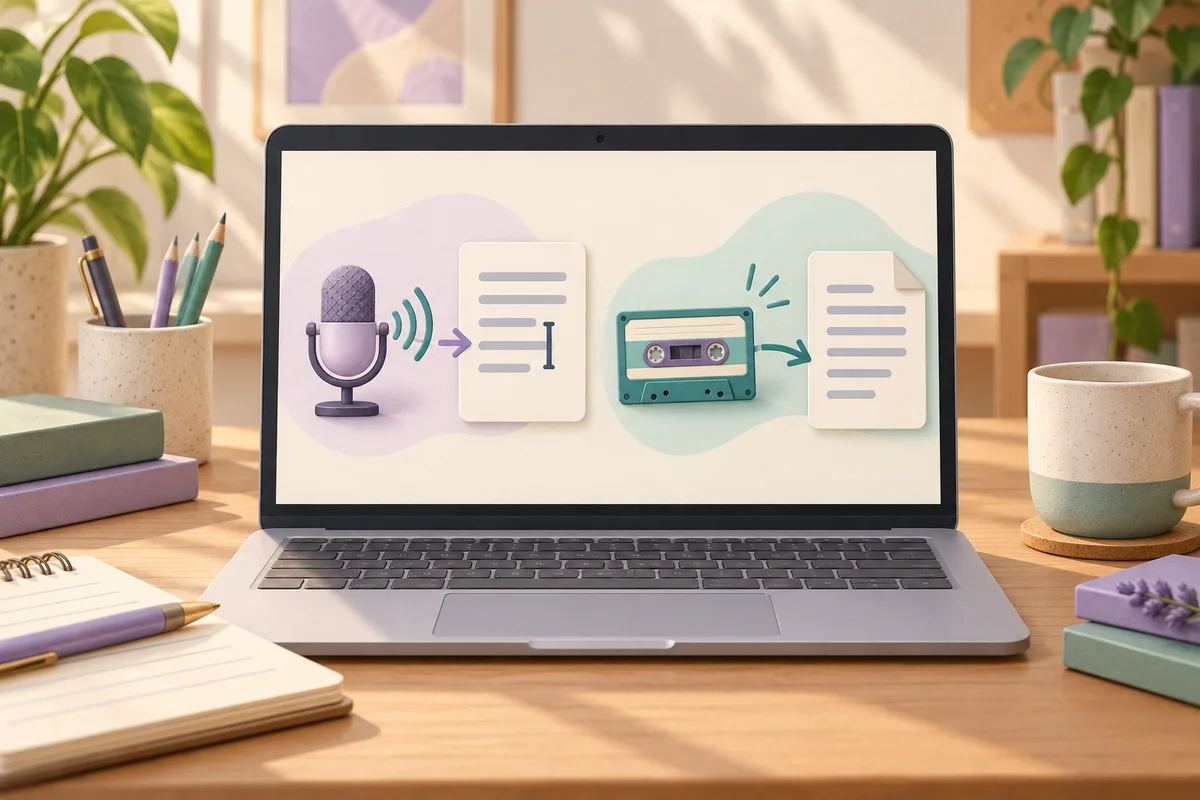
Windows voice typing is the right tool when you want to speak a new draft into a text field. Word Transcribe is the better fit when you already have an interview recording, or need to replay speech while checking a transcript. Their similar microphone icons hide different workflows, storage arrangements and subscription conditions.
A cursor tool or a recording workspace?
In Windows 11, voice typing starts with Windows+H while the cursor sits in an editable text field. You need a microphone and an internet connection. Microsoft says the feature uses online Azure speech recognition. It inserts words where you are working, so it suits a first draft of an email or a document rather than managing an archive of recordings.
The input language matters. Windows+Space switches between installed input languages, and that choice can differ from the Windows display language. Microsoft's Windows 11 list includes Danish, German and several English variants. Its guide says the optional speech package is not required for voice typing. Selecting the right keyboard language is therefore more useful than downloading unrelated speech components.
Word Transcribe provides a different workspace. You can record directly or upload WAV, MP4, M4A and MP3 files. The transcript arrives after processing, with timestamps and separated speakers. Clicking a timestamp plays the relevant audio. You can correct a passage and rename a speaker throughout the transcript, then insert selected sections or the whole text into the document.
For Word on the web, Microsoft's instructions require a Microsoft 365 sign-in and the new Microsoft Edge or Chrome. The Windows desktop feature is documented for Microsoft 365 commercial tenants. Do not assume that seeing Dictate in Word means every version of Transcribe is available in that account.
Quotas and storage change the decision
Microsoft's transcription guide gives Microsoft 365 subscribers 300 minutes of uploaded audio per month. It separately lists 30,000 uploaded minutes for users with a Microsoft Copilot licence. Those are documented licence categories, not a reason to assume that a free Copilot chat account increases your allowance. The guide does not establish a single subscription price for every country and account type.
A hypothetical researcher with six one-hour interviews has 360 minutes to upload. That exceeds the ordinary 300-minute allowance, even before any additional interviews. This is a workload calculation, not a transcription test. Establish the account's entitlement before planning a project around it.
Word stores uploaded or directly recorded audio in the Transcribed Files folder in OneDrive. Microsoft explains that you can delete recordings there. This is important when deciding who retains the source material, and whether your organisation permits that cloud storage. Keeping a local copy does not remove the OneDrive copy automatically.
A Word document has one associated transcript. Starting a new transcription replaces the transcript in the pane, although text already added to the document remains. Give separate interviews separate documents if you want a straightforward relationship between the source and its corrections. Sharing the document also does not automatically grant permission to play the audio: the OneDrive recording needs its own sharing permission.
Compare the work you actually need
| Requirement | Windows 11 voice typing | Word Transcribe |
|---|---|---|
| Create text as you speak | Inserts at the active cursor | Transcript follows recording and processing |
| Work from a saved file | The documented workflow is microphone dictation | Upload WAV, MP4, M4A or MP3 |
| Recheck a quotation | Correct the text you dictated | Timestamp playback and editable speaker names |
| Network dependency | Online speech recognition | Internet and cloud processing |
| Audio storage in this workflow | No recording library described | OneDrive Transcribed Files folder |
| Main account constraint | Windows feature and input language | Microsoft 365 eligibility and upload allowance |
Choose voice typing for composing your own prose. Choose Word Transcribe when retaining a route back to a recording matters more than seeing words immediately. Neither recommendation implies that the transcription is accurate enough to publish without listening.
In a hypothetical interview project, a researcher might dictate a short introduction with Windows+H, then use Word Transcribe for the actual interview. The introduction is new writing. The interview is evidence that needs checking against audio. Using different tools for those stages avoids treating dictated recollection as a verified quotation.
A ten-minute check before the interview
Spend two minutes selecting the intended Windows input language and dictating a paragraph containing a name, a number and a correction. Confirm where the words appear. Turn automatic punctuation on or off according to the kind of draft you want, then read the result rather than judging only its speed.
Use the next three minutes to upload a short, non-sensitive sample in Word. Keep the Transcribe pane open while it processes. Microsoft's guide warns that processing can take up to the length of the recording, so a long upload does not belong in this short check.
For another three minutes, click timestamps, correct a name and rename a speaker. Add one passage to the document. These actions reveal whether the review workflow is comfortable enough for the longer task; they do not establish an accuracy percentage.
Use the last two minutes to locate the audio in OneDrive and check sharing permissions. If someone else will review it, confirm that the intended reviewer can access both document and recording. Then remove the disposable sample according to your own retention policy.
Offline claims need the exact feature name
Windows voice typing is not the same feature as Voice access. Microsoft's separate Voice access guide describes on-device recognition after an initial language download, on Windows 11 version 22H2 or later. Its listed languages include English and German, but not Danish. That makes it relevant for supported offline dictation and PC control, without making Windows+H an offline tool.
Microsoft also documents Fluid dictation for English locales on Copilot+ PCs. It can adjust grammar and remove filler words using downloaded local models. That local rewriting component does not cancel the internet requirement stated for voice typing. For quotations, automatic rewriting is a reason to inspect the text carefully or disable that option, not a transcription quality guarantee.
Playing an interview through the computer's speakers into voice typing is a poor substitute for a file workflow. Microsoft's guide says echo cancellation suppresses audio from the computer's speakers. Word's upload function is the documented route for processing a saved recording. Likewise, Word's speaker separation still needs human checking before you attach a person's name to a statement.
Where Notibo fits after the recording
Choose Notibo when the desired result is a transcript plus a summary and key points, rather than a timestamped Word review workspace. It records in the browser and accepts audio or video uploads up to 50 MB. A recording can last up to two hours, with longer recordings saved in parts and joined. Recording-based flashcards and spaced repetition are Pro features.
Notibo does not provide transcript timestamps or promise speaker labels, so Word Transcribe is the better match for the playback-led review described above. Notibo processes audio in the cloud, with EU storage and US processors. An already running recording can continue through a lost connection while the page stays open, then upload when the connection returns; that is not offline transcription. Select one main language before recording, because switching languages during the recording can cause errors.
Related comparisons
- Google Docs voice typing vs Notibo: dictation or recording?
- Aiko vs Apple Dictation: recordings or spoken text?
This is a documentation-based comparison by Notibo, checked on 20 October 2026, not a measured accuracy benchmark. The examples are suggested trials, not reported test results.