Choose Riverside when the interview needs separate production files from each guest's device. Choose Zoom when an ordinary meeting recording will do and you want the documented option of free computer recording. Zoom can also save separate participant audio, so the useful distinction is how the recording is captured and delivered, not simply whether separate files exist.
What the editor receives
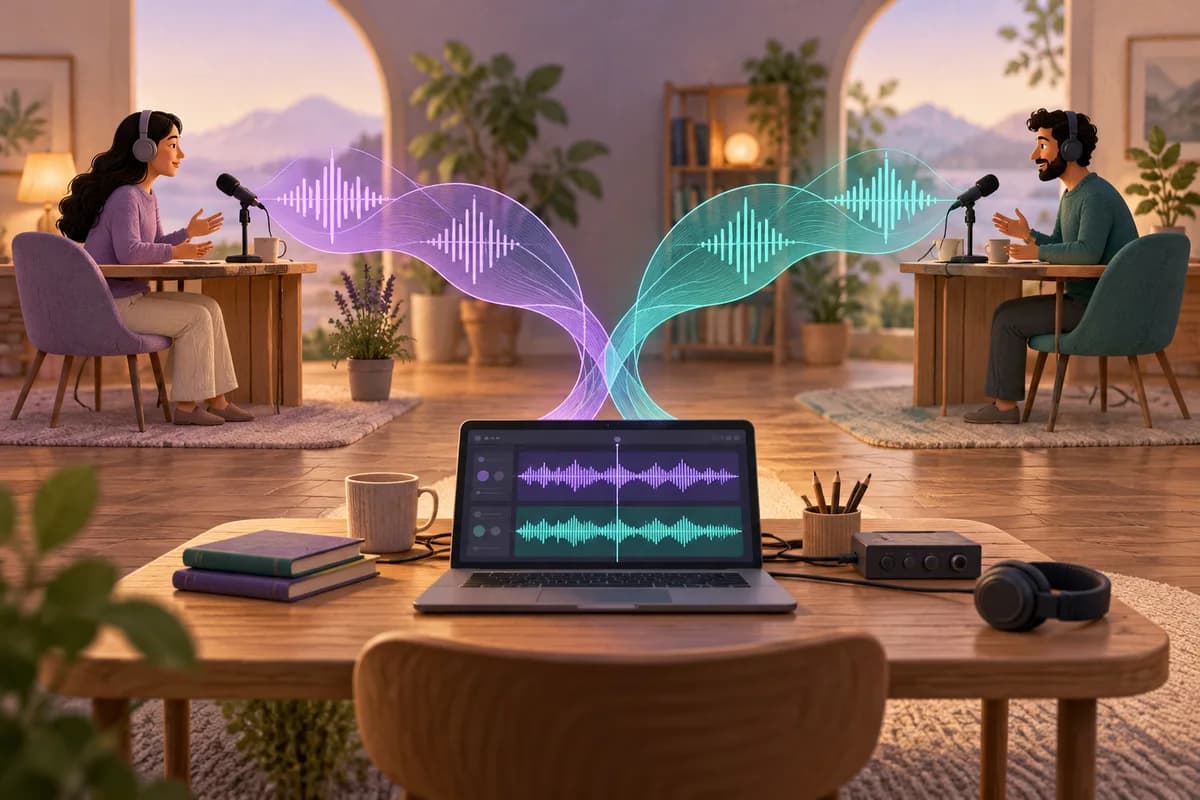
Riverside's recording page describes audio and video captured on participants' devices, followed by progressive upload. Each participant has a separate track. The conversation you hear over the connection is therefore not the only recording being made. That architecture is relevant when you need to adjust one person's contribution without changing the other person's track.
The page advertises WAV audio at 48 kHz and video up to 4K. Those are product capabilities, not a promise that every account exports at those settings. Decide the required deliverable before choosing a subscription.
Zoom's computer-recording guide describes a different output: it records the meeting view seen by the person making the recording. It does not offer independent active-speaker, gallery and shared-screen video tracks through this feature. Its separate-audio setting does produce one audio file per participant. Enable that setting before the interview if independent audio matters.
After a Zoom meeting ends, conversion creates the recording files. The guide identifies MP4 video and M4A audio. The participant files are placed in an Audio Record folder and named for the participant. This gives an editor a practical distinction between a rendered meeting view and the individual audio sources.
Devices, completion and actual limits
Zoom computer recording is available to free Basic users and paid users on Windows, macOS and Linux desktop apps. The host can record or grant another participant recording permission. These statements concern computer recording; they do not establish that every cloud-recording feature is included in a free account.
A Basic-hosted interview with a guest is normally limited to 40 minutes. Zoom's time-limit page lists a 30-hour limit for licensed meetings, with separate idle-meeting conditions. A Basic user inside a paid organisation still has Basic limits unless assigned the appropriate licence. Check the actual host account rather than assuming an organisation's subscription covers everyone.
Riverside's current requirements name Chrome, Edge and Safari 18.2 or newer on computers, with some Safari limitations and the instruction to keep its tab active. Mobile recording uses the iOS or Android app; mobile browsers are not supported for recording. Linux and ChromeOS computers are also listed as unsupported. These are meaningful differences if your guest cannot change devices.
The recording landing page still labels its Mac app as coming soon, while the requirements page documents an available app requiring macOS 15 and Apple Silicon. For setup, use the specific requirements page rather than that older promotional label. Neither statement changes the separate supported browser route on a suitable Mac.
The decisions that affect a real interview
| Requirement | Riverside | Zoom computer recording |
|---|---|---|
| Capture approach | Local participant tracks, progressively uploaded | Recording of the recorder's meeting view |
| Separate audio | Individual participant tracks | Optional file per participant |
| Separate video sources | Participant video tracks | No independent gallery, speaker and screen tracks |
| Linux guest workflow | Computer recording unsupported | Desktop computer recording supported |
| End of session | Guest waits for upload completion | Recording converts after meeting ends |
| Free route | Confirm current export entitlement | Basic computer recording; usual 40-minute interview limit |
Consider a hypothetical editor recording a 60-minute remote interview for a video programme. The editor expects to change camera framing and repair interruptions separately. Riverside's individual video tracks are a reason to choose it. The guest briefing must include supported equipment and time after the conversation for uploads to finish.
Now consider a hypothetical researcher doing a 25-minute conversation with an interviewee who already uses Zoom. A meeting-view recording plus separate audio may be sufficient. The documented Basic limit accommodates that planned duration. Paying for a production workflow is not necessary merely because the conversation will later be transcribed.
These are workflow examples, not measured quality comparisons. Neither source establishes that a particular microphone, room or accent will produce a better transcript on one platform. The practical recommendation changes with the required files and the guest's setup.
Rehearse the handover in ten minutes
Use a consenting colleague and non-sensitive sample material. The aim is to prove that usable files reach the editor, not merely that the recording symbol lights up.
- Spend two minutes checking the host account, microphone and destination folder. For Riverside, check browser support and available temporary storage. Its guest checklist asks for at least 5 GB of free browser space.
- Record three minutes with both people speaking in turn. Include a name, a date and a brief overlap. In Zoom, enable separate participant audio before starting.
- Stop and spend two minutes observing completion. Riverside asks guests to keep the window open until Upload Complete or 100% Uploaded appears. In Zoom, let conversion finish before closing the laptop.
- Use the remaining three minutes to open the outputs independently. Locate both voices, inspect the beginning and end, and confirm which files the editor actually needs.
If upload or conversion takes longer, let it finish and revise the schedule. Ten minutes is a rehearsal budget, not a guaranteed processing time. Record the observed waiting time for your own setup rather than promising guests they can leave immediately.
Keep simultaneous participant tracks aligned on a shared timeline. Appending one person's entire file after the other's would turn a conversation into two separate monologues. Make a listening copy for review while preserving the independent originals for editing.
What local recording does not guarantee
Riverside's local capture should not be read as a promise of an offline remote call. Its requirements page recommends a fast connection, and the final tracks must upload. A completed conversation and a completed transfer are different events. Agree who checks both before considering the interview safely delivered.
Zoom warns that interrupting conversion through shutdown, restart, sleep or closing the laptop can corrupt the recording. Its guide recommends recording to a local drive rather than a synchronised or external destination. Copy the finished files to your chosen archive afterwards instead of making conversion depend on that destination.
Zoom's computer-recording feature does not itself provide audio transcription. Do not confuse its recording files with a reviewed written interview. Likewise, a Riverside production track is source material, not a verified quotation. Names, disputed statements and unclear passages still need listening checks before publication.
Where Notibo fits after recording
Notibo is an optional next step when the desired outcome is a transcript and structured notes rather than a video edit. Upload an audio or video file of up to 50 MB, then review the transcript and summary against the original. Keep production tracks in your own archive; Notibo is not a video editor and does not promise speaker labels or transcript timestamps.
Choose one main language for processing. Automatic detection identifies the dominant language, but switching languages within the interview can cause errors. Notibo processes recordings in the cloud, with EU storage and US processors. It is not an on-device transcription route, and no Notibo bot joins the interview.
Choose Riverside for the production-track requirement, or Zoom for the simpler meeting-recording requirement. Add Notibo only if written notes are also useful.
Related comparisons
- Zencastr vs Riverside: compare the recording handoff
- WAV vs MP3 for transcription: quality, size and backups
This is a documentation-based comparison by Notibo, checked on 20 October 2026, not a measured accuracy benchmark. The examples are suggested trials, not reported test results.