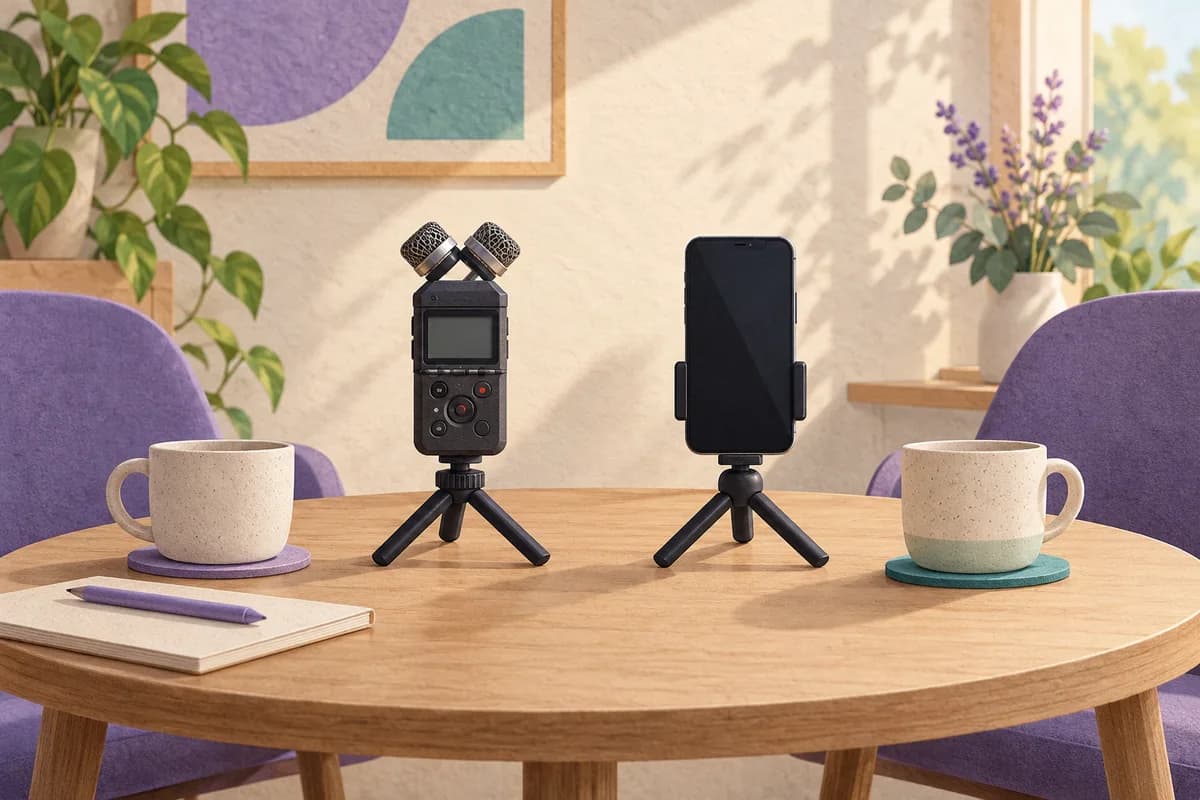
Keep using your phone if it produces intelligible speech and a file you can retrieve without difficulty. Choose the Zoom H1essential when dedicated controls, removable storage or headphone monitoring solve a specific recording problem. The H1essential is a physical recorder from Zoom Corporation, and buying it does not by itself provide a transcript or study notes.
What the separate recorder puts in your hands
The H1essential has built-in X/Y stereo microphones, a dedicated record button and a marker button. Its manual describes stereo recording or a mono mode that mixes the left and right inputs into one channel. You can add up to 99 marks to a file, then use them as navigation points during playback. These marks are playback aids, not promised transcription-service markers.
A 3.5 mm mic/line input accepts an external source, including a suitable lavalier microphone. The manual explicitly says that using this input disables the built-in X/Y microphone. It cannot record both as independent microphone tracks simultaneously. The separate headphone/line output allows monitoring; the built-in speaker is for playback and cannot monitor during recording.
Power can come from two AAA batteries or a USB power source. The manual lists microSDHC cards from 4 to 32 GB and microSDXC cards from 64 GB to 1 TB. Recording requires an inserted card. Format and test the intended card before an important session, after copying off anything you need: formatting deletes its contents. A passed card test is guidance, not a guarantee against writing errors.
Separate hardware adds battery, card and transfer preparation. The reviewed product page showed no verifiable hardware price, so none is assumed.
What 32-bit float helps with, and what it cannot fix
The revision-two manual describes 32-bit float WAV recording at 44.1, 48 or 96 kHz. It explains that level changes in a compatible editor can recover an unclipped waveform when the stored floating-point data remains intact. That editing headroom does not replace microphone placement.
The same manual has a microphone-overload warning. Its remedy is to increase the distance from an excessively loud source. It also warns that placing the recorder directly on a table can reduce clarity through reflected sound and suggests raising it on a tripod. Those instructions limit the product page's perfect-audio claims: wind and placement still matter.
There is also a version distinction. The older manual describes recording only in 32-bit float, while the current product page announces firmware adding MP3 recording, gain adjustment and noise reduction for steady background noise. The older PDF does not disprove current MP3 support. Check a borrowed recorder's firmware before expecting these additions.
The recorder's language options describe its interface and spoken menu guidance, not speech-to-text recognition. Its documented job is to capture sound. A Danish interview does not become a Danish transcript merely because the device has accessible spoken menus.
A phone is a specific app, not one universal specification
Apple Voice Memos provides a concrete phone comparison here. Apple's recording guide describes the built-in microphone, a supported headset or an external microphone, plus pause/resume and editing such as trimming or replacing sections. It advises changing the microphone's distance from the source to adjust the captured level.
Voice Memos can continue while you use another app, provided that app does not play audio. Apple explicitly says recording stops if the other app starts playing sound. Rehearse your intended phone tasks. This iPhone rule does not describe every Android recorder.
Apple also describes Voice Isolation for reducing background sound and Wide Spectrum for including it, with model restrictions on Wide Spectrum. If Voice Memos is enabled in iCloud, recordings appear and update across devices using the same Apple Account. That convenience is conditional on the setting; using a phone recorder does not automatically mean the file stays exclusively on that phone.
| Question | H1essential | iPhone with Voice Memos |
|---|---|---|
| Capture controls | Dedicated record and marker buttons | App recording with pause and resume |
| Working storage | Inserted microSD card required | App recording, optional iCloud synchronisation |
| Monitoring route | Headphones during recording | Check the phone and accessory setup |
| External microphone | Mic/line input replaces built-in X/Y input | Supported external microphone or headset |
| Other tasks | Separate hardware and power | Another app playing audio stops recording |
| Getting a usable file | USB transfer and optional WAV conversion | Export to Files, M4A by default |
Plan the file transfer before committing to hardware
The H1essential manual separates USB microphone mode from File Transfer mode. To copy recordings, select the transfer mode and use a USB cable that carries data. A cable that only supplies power will not complete this job. The manual also describes a Lightning to USB 3 Camera Adapter for compatible Lightning devices.
For applications that reject 32-bit float, the recorder can export a 16-bit or 24-bit WAV copy, with optional normalisation. The manual says these copies are placed in an Export folder and cannot be played by the recorder itself. Check them on the receiving device. Keep the original alongside the compatibility copy.
Apple's export guide gives a different route: Share, then Save to Files. The default export is M4A, flattening layered recordings and turning Spatial Audio into stereo. Its Editable option instead uses QuickTime Audio to retain adjustable effects or layers. For straightforward speech processing, first establish which exported file the next application actually accepts.
In a hypothetical interview, you need the phone to consult reference material while a separate device remains near the speaker. The H1essential can make that arrangement easier. If your phone already captures clear speech and you can leave it in place, buying a recorder just to add another transfer step has little practical justification.
A ten-minute placement and transfer rehearsal
Spend two minutes positioning the available device where it could realistically sit during the interview. With a borrowed recorder, prepare power and a suitable card in advance. Compare devices at similar distances.
Record for two minutes, including a quiet sentence and a louder one. Add a clear final sentence. With the H1essential, check headphone monitoring and place a marker. On the phone, try the ordinary app-switching behaviour you expect to need, then confirm that recording is still active.
Use three minutes to stop, save and transfer the sample. If a conversion is needed, make a separate copy through the documented export function. Renaming the file extension does not perform that conversion.
Listen for the remaining three minutes on the destination device. Confirm the first and final sentences, intelligibility and file duration. Prefer the setup that solves your actual capture problem with a repeatable delivery process. This suggested rehearsal does not establish that one microphone outperforms every other phone or recorder.
Where Notibo fits once the file is usable
Notibo can process permitted audio or video uploads up to 50 MB into a transcript, summary and key points. Production WAV files may exceed that limit, so check the actual working file size. Recording-based flashcards and spaced repetition are Pro features. Notibo does not promise speaker labels or provide transcript timestamps.
This is cloud processing with EU storage and US processors, not an on-device feature of the recorder. Choose one main language, because switching languages during a recording can cause errors. Keep the original sound for checking important details. The hardware decision should improve capture; add Notibo when structured notes are the separate result you need afterwards.
Related comparisons
- WAV vs MP3 for transcription: quality, size and backups
- Easy Voice Recorder vs Notibo: capture first or make notes?
This is a documentation-based comparison by Notibo, checked on 20 October 2026, not a measured accuracy benchmark. The examples are suggested trials, not reported test results.