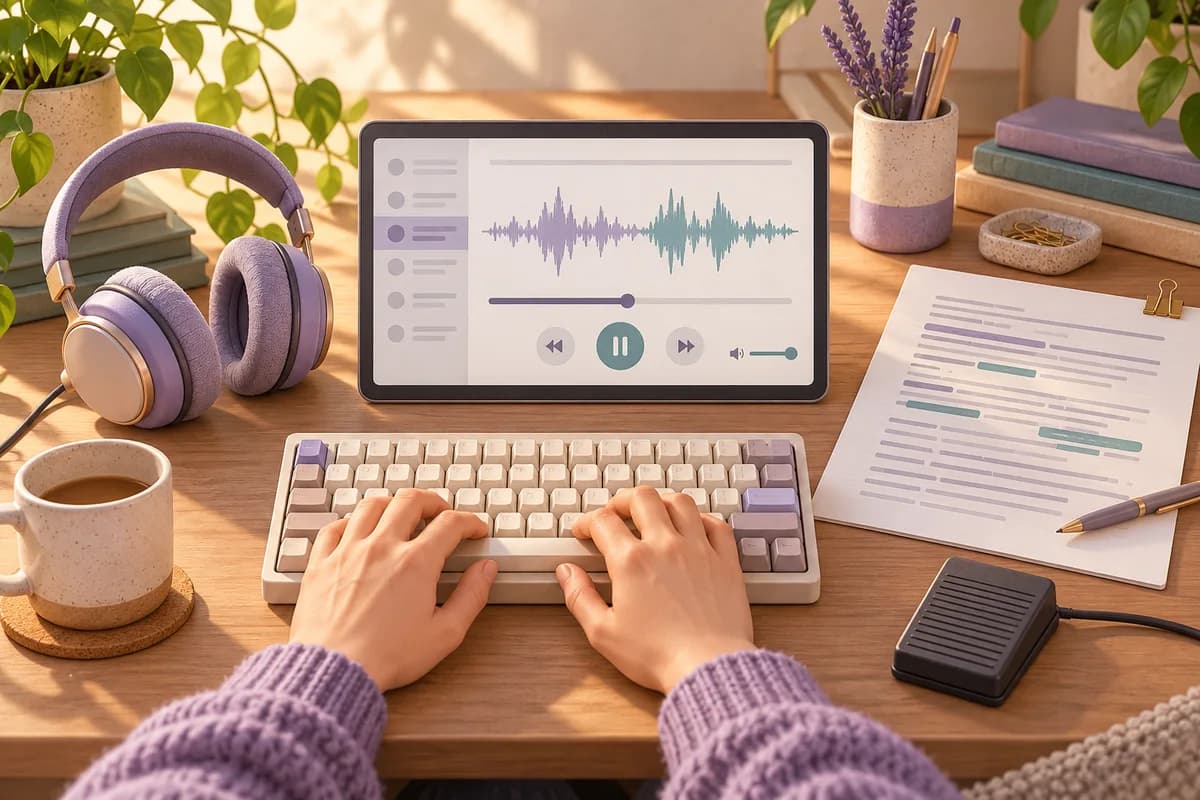
oTranscribe is a good choice for an occasional interview you want to type in one browser workspace. Express Scribe is better suited to a regular transcription routine involving a separate word processor, controlled playback and possibly a foot pedal. Choose between them on how you listen, write and recover your work, not on an imagined competition between automatic recognition engines.
oTranscribe keeps the player beside your writing
oTranscribe is a free, open-source web application for desktop computers. Its home page combines an audio or video player with a text area and interactive timestamps. The help page explicitly says that it does not automatically turn audio into text. You listen and write the transcript yourself.
The documented controls make this arrangement practical. Esc starts or pauses playback; Ctrl+J inserts a clickable timestamp. The help page specifies Command instead of Control on macOS. Use a timestamp at the point where you need to return to an uncertain statement, rather than filling every line with markers that your project does not require.
For exports, oTranscribe provides plain text, Markdown and its own OTR format. The help documentation says OTR preserves clickable timestamps and is the format it can import again. A readable TXT copy is therefore useful for delivery, while OTR serves a different purpose when you want to resume the working transcript.
Express Scribe separates playback from the document
NCH describes Express Scribe as a transcription player for PC and Mac. It offers variable-speed playback at constant pitch and keyboard controls that work while you type in a word processor. The product page also describes automatically loading incoming dictations from a folder, a local network or FTP. Those options address a repeated flow of files, rather than only a single interview.
The free version supports common audio formats including WAV, MP3, WMA and DCT. NCH's Free/Pro comparison puts video playback and additional recorder formats in Pro. It also distinguishes hardware: AltoEdge pedals are supported in both editions, while other professional controllers require Pro. Do not interpret a photograph of a pedal as confirmation that your model is supported by the free edition.
Express Scribe's page mentions integration with speech-recognition software. That is different from promising that this playback application supplies an automatic draft of every file by itself. For the manual workflow compared here, its concrete benefit is controlling listening while your document remains in your chosen editor.
Compare the working session you actually need
| Part of the task | oTranscribe | Express Scribe |
|---|---|---|
| Place to write | Integrated browser text area | Your word processor alongside the player |
| Automatic wording | Help says transcription remains manual | Recognition-software integration is separate from playback |
| Finding a passage again | Clickable timestamps, preserved in OTR | Playback controls alongside your own document conventions |
| Free starting point | Free desktop web app | Free edition for common audio formats |
| Pedal requirement | No pedal needed for the described keyboard workflow | AltoEdge in Free/Pro; other supported controllers require Pro |
| Work handover | Export TXT, Markdown or OTR | Save the document in your chosen editor |
In a hypothetical methods assignment, a student has one interview and must mark hesitations consistently. oTranscribe is a sensible recommendation because the player and writing stay together. The student can add a timestamp to an unclear passage and return to it during checking.
In a hypothetical transcription office, recordings arrive repeatedly while the typist uses a required document template. Express Scribe is the more relevant candidate. Its file-loading and external-editor workflow match that organization. Select the edition around the actual formats and controller, not around the general word “professional”.
Neither case establishes an accuracy advantage. In both, the final wording depends on the person listening and on the agreed rules for what to include.
Protect the transcript before polishing it
oTranscribe stores working text in the browser. Its help page describes history snapshots every five minutes, with 100 copies retained, and warns that browser storage is not a permanent document store. The home page's more frequent autosave description is not the same thing as this retained history. Export a separate copy at meaningful stopping points.
The privacy policy says oTranscribe does not keep copies of the transcripts or media you are transcribing. This supports the local working model, but do not extend it to an optional export to Google Drive or a separate online conversion service. Moving a file into another service is a new data-handling step.
Make the backup useful rather than merely plentiful. Include an interview identifier and a revision date in your file naming. Keep the audio associated with that identifier. If a colleague later disputes a phrase, they should be able to find the same recording and understand which version of the transcript they received.
With Express Scribe, saving the document in your word processor is still a separate responsibility from loading the audio into the player. Before closing a session, reopen the saved document and check the last completed sentence. A player showing the correct filename does not prove that the associated writing has been saved.
Ten minutes to rehearse listening and resuming
During the first two minutes, choose a short, permitted passage with a pause, an unclear word and a speaker interruption. Write down your convention for uncertainty. For example, use a clearly defined marker rather than inventing a plausible word. The example is a proposed method, not a requirement imposed by either application.
Spend minutes three through five in oTranscribe. Type a small section, pause with the keyboard and insert a timestamp at the difficult point. Export both a delivery copy and an OTR working copy. Check that you know which file you would reopen to continue later.
Use minutes six through eight for the same passage in Express Scribe with your usual editor. Adjust the playback speed and try the controls without reaching for the mouse. If a compatible pedal is already available, test it here; there is no need to buy one before evaluating the keyboard workflow.
In the final two minutes, stop both workflows and inspect the saved work. Can you identify the uncertain word, find its source and resume at the next sentence? Record interruptions and recovery difficulties. Counting words alone would miss the problem if the faster-looking method repeatedly loses your place.
When a Notibo draft changes the starting point
Notibo offers a different route: browser recording or an audio/video upload of up to 50 MB, followed by a transcript, summary and key points. It can be useful when your deliverable is readable notes and cloud processing is permitted. It is not a promise of specialist notation for pauses, overlap or false starts.
The transcript has no timestamps, and speaker labels are not promised. If precise research conventions are essential, the manual checking workflow remains the better fit for the final document. Do not silently replace an uncertain quotation with a smoother summary.
Notibo uses cloud processing with EU storage and US processors. Choose one main language; switching languages during a recording can cause errors. Use an automatic draft only where those conditions fit, and retain the original audio as the reference for important wording. For an occasional interview, start with oTranscribe; for repeated controlled playback in an established writing setup, investigate Express Scribe.
Related comparisons
- Trint vs Sonix: choosing a transcript review workflow
- Buzz vs Vibe: choosing a local transcription workflow
This is a documentation-based comparison by Notibo, checked on 20 October 2026, not a measured accuracy benchmark. The examples are suggested trials, not reported test results.