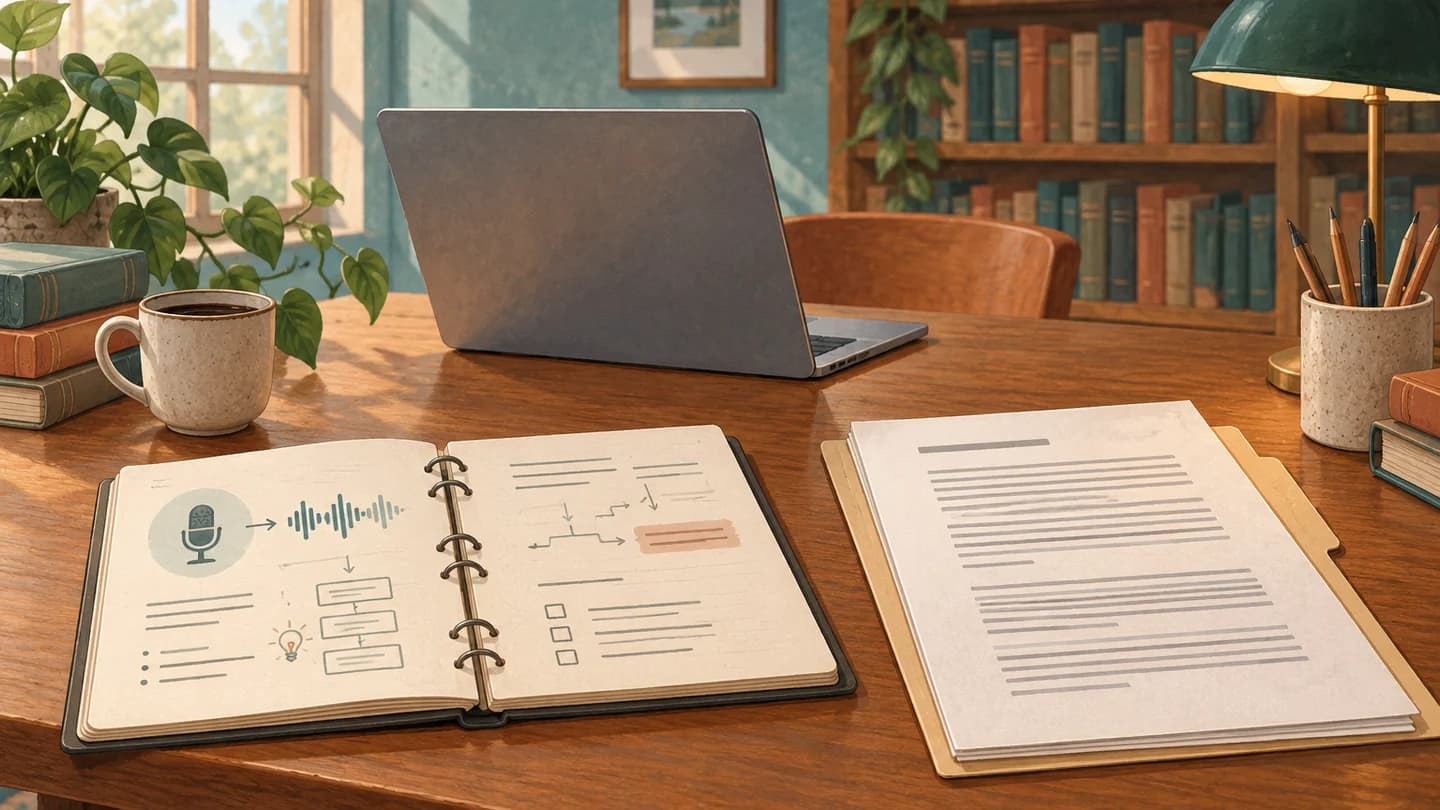
Short answer first: choose OneNote when a transcript should sit beside notes, sketches and questions that will keep developing. Choose Word when the main result should be a document you can correct, structure and hand over. First check the account and platform that actually give you Transcribe: a university login, the presence of a microphone button or an installed app does not settle that question. Then compare the work after transcription, including audio checking and preservation. If your current Microsoft access already handles that complete workflow, another subscription may add little.
This is a documentation-based comparison checked on 11 October 2026, using Microsoft's English support and education pages. It does not report a controlled recognition test or promise the same feature set on every device. The aim is to choose between a working notebook and a finished document, using the access you actually have.
What should exist when you finish reviewing the recording?
Start at the end. For an oral-history seminar, you may need a readable account of a discussion, with uncertain quotations checked and speaker labels corrected. For a quantitative methods class, you may need a diagram, the spoken explanation of its assumptions and the question you still want to ask. Those final objects are different even if both begin as audio.
| Desired result | Starting choice | Main work after transcription |
|---|---|---|
| A course page that grows with examples and questions | OneNote | Connect the explanation to your own annotations |
| A readable transcript or report for another person | Word | Correct wording, organise sections and prepare the document |
| Your own spoken first draft | Word Dictate | Revise the argument and sentence structure |
| Editable lecture text and generated notes in a separate service | Notibo | Check the material and export what you need |
Describe your intended result in one sentence before starting. “A page that lets me solve this type of problem again” is a useful target. “All my recordings converted” is a processing target, but it says little about learning. The distinction between transcription and notes helps when you are unsure which output you need.
Does your university account include the right access?
Microsoft's education page offers A1 without charge to eligible students and educators, with web versions of core apps. A3 adds desktop applications. These plan descriptions do not justify assuming that any university email provides every speech feature on every installation.
The Transcribe documentation specifies OneNote for Microsoft 365 on Windows. Word's Windows feature is scoped to commercial tenants; the documented web workflow uses Edge or Chrome with Microsoft 365. Confirm the control in your own account before relying on it.
Check identity, application and permission separately
Write down which identity is signed in, which application you opened and where the intended file lives. It is easy to open a university notebook while the application is using a personal identity, or to test a personal document and assume the university environment will behave the same way.
Create a disposable test page or document in the location you intend to use. Look for Transcribe rather than merely a microphone icon. Complete a short permitted sample, reopen it and check that you can edit the result. This establishes a much more useful fact than the general statement that your institution “has Microsoft”.
If the feature is missing, give support a precise description: the account type, device, application and missing control. Ask whether the assigned licence and organisational settings permit the intended workflow. Buying an unrelated personal subscription without resolving that question can leave the original university notebook problem untouched.
Keep an ordinary fallback ready
An access check belongs before the lecture. If it fails, you still need a way to take notes and mark uncertain passages. Your fallback might be ordinary notes plus a recording method approved for that class, or simply a list of questions to clarify afterwards.
Do not make essential access arrangements depend on an untested software feature. If you need a particular format or support to participate, agree that with the institution through its normal process. A consumer feature comparison cannot establish that an individual setup meets those needs.
When is OneNote's relationship with audio worth keeping?
Microsoft's ordinary audio-note guide describes recording in desktop OneNote on Windows and connecting notes made during capture to the corresponding audio. That capability is distinct from automatic transcription. You may benefit from linked notes even when a transcript is unnecessary or unavailable.
Consider a statistics workshop where the tutor repeatedly changes a model and explains what each change means. A conventional transcript preserves the words, but your sketch may show which model was on the board. Keeping that sketch and the relevant explanation together can preserve something a linear page handles less naturally.
The separate Ink Replay guide documents ink following recorded or transcribed audio, with the combined workflow limited to OneNote for Windows. Do not infer identical audio-linked ink behaviour from seeing an Ink Replay command in another Office application.
Use a small annotation vocabulary: a question mark for an unclear explanation, a star for a worked example worth revisiting and a short label for the concept involved. The labels should help you find the moment later. If you need a legend longer than the actual notes, simplify it.
Keep each transcript on its own page. Microsoft's Transcribe guide says creating a new transcription replaces the existing pane transcript, although text already added to the page remains. An evolving course notebook should not depend on repeatedly replacing the transcript you still need to check.
OneNote becomes a less convincing choice when the canvas is merely storing a long block of text that you subsequently copy into Word. If almost every session ends with that transfer, start with the document unless another part of the notebook gives you a clear benefit.
When does Word make correction and handover simpler?
Word is a sensible starting point when the reader needs a clear beginning, sequence and ending. Think of a seminar discussion you will turn into a short report: the transcript is working material, while the final document needs headings, checked quotations and a distinction between what was said and what you conclude.
Microsoft documents transcript correction, speaker relabelling, timestamped audio navigation and inserting selected passages or the full transcript. Those functions support checking, but they do not decide which passages deserve inclusion. Keep the review task narrow enough that you can actually complete it.
Separate the transcript from your interpretation
Suppose one speaker says a proposed project “might be feasible if the data arrives”. Your report should not quietly turn that into approval. Preserve the condition in a checked quotation or explain it accurately in your own account. A cleaner sentence is not an improvement if it changes the commitment.
Use a working copy for interpretation and make the status visible: rough transcript, checked extract or finished report. The labels need not be elaborate. Their purpose is to stop a reader treating unverified speech recognition as a confirmed quotation.
Review names, numbers, dates and negations first when they are material to the task. Then read the surrounding exchange to make sure the sentence means what it appears to mean in isolation. If you cannot resolve a word, mark the uncertainty instead of silently inventing a plausible answer.
Use Dictate for your own explanation
If the task is to say what you learned, Microsoft's Word dictation guide describes voice drafting with a microphone and internet connection. Speaking your own explanation into a document is a different activity from transcribing someone else's recording.
Try explaining a concept aloud before looking at the notes. Revise the resulting draft and identify where your reasoning stalled. That can reveal a gap more clearly than rereading another polished transcript. Dictation is useful here because the words are meant to be your attempted explanation, not a supposedly faithful record of the class.
How much uploaded audio will you actually need?
Microsoft currently lists 300 minutes of uploaded audio per month for Microsoft 365 and 30,000 with a qualifying Microsoft Copilot licence. Those figures describe uploads, not a universal limit for every kind of recording. Confirm the allowance applicable to your own account.
Five hours can sound generous until it is expressed as your timetable. Three 60-minute recordings use 180 minutes; adding two more uses 300. Six recordings of the same length require 360. This is straightforward planning arithmetic, not a measurement of either application's processing speed.
| Example monthly upload plan | Audio total | Relationship to a 300-minute allowance |
|---|---|---|
| Four short 30-minute sessions | 120 minutes | Leaves 180 minutes for other uploads |
| Five one-hour recordings | 300 minutes | Uses the entire allowance |
| Three 90-minute recordings | 270 minutes | Leaves little room for another long upload |
| Six one-hour recordings | 360 minutes | Exceeds that allowance by 60 minutes |
Do not assume that a larger allowance is the most economical solution before deciding which recordings need full transcription. A workshop you understood may only require a short personal note. A difficult seminar with several competing definitions may justify detailed review. Selecting material for a reason is different from processing everything by default.
If your institution already assigns a qualifying licence, the additional personal cost may be zero. If it does not, compare the complete offer you would need to buy. Institution-facing education plans are not interchangeable with an individual retail purchase, so a single universal student price would mislead here.
Who can hear the audio after you share the document?
Transcribe uses cloud processing, and its recordings are stored in OneDrive. Microsoft's instructions treat access to that audio separately from sharing the Word document or OneNote content. A recipient who can read the text does not automatically receive audio playback permission.
That distinction is useful when you are sharing a written account but have no reason to distribute the original voices. It also creates a predictable failure when a collaborator legitimately needs to check a quotation but cannot open its audio. Decide what the recipient requires and test the precise access you intend to grant.
Check your recording permission before capture as well as your sharing permission afterwards. A lecturer agreeing to personal review does not automatically settle whether a whole study group should receive the recording. Consult the actual course rules; the lecture-recording policy guide can help you identify the questions to resolve.
Use a short neutral recording to test collaboration. Ask the intended recipient to open the document and, only if appropriate, the audio. Do not discover which account or link works by repeatedly widening access to a real sensitive recording.
Also treat the text as potentially sensitive in its own right. Removing audio does not remove personal details from a transcript. Before sharing, check whether the document contains incidental comments, private examples or identifying information that was never needed for the study task.
What happens when the course or university account ends?
A working notebook is a poor archive if you can only open it through an account that will soon disappear. The education page says eligibility can be rechecked and that associated online services may stop working when the education plan expires. Find out your institution's actual departure arrangements while there is still time to act.
Microsoft's PDF export guide describes a static snapshot. It is useful for reading and handing over notes, but later changes do not update the exported file. Name important versions clearly enough to avoid circulating an outdated correction.
Whole-notebook preservation has a different account restriction. The browser export guidance limits that route to personal OneDrive notebooks, excluding work or school OneDrive and SharePoint. This does not mean every form of university-note preservation is impossible; it means you should not promise a one-click route that the documented account does not support.
Ask your institution about an appropriate method for the material you are allowed to retain. Test one representative notebook early, including a diagram, a long page and a recording. Check the resulting files on the device or account you will use afterwards.
Keep readable documents and original audio separately where your permissions require or allow it. A document export alone does not establish a complete reusable audio notebook. Decide which properties you need to preserve instead of assuming that any successful download is a full backup.
Which workflow should you commit to for the term?
Choose OneNote if the lasting value is the connection between a developing page, your annotations and the explanation you heard. Verify the Windows transcription entitlement if that is part of the plan, and test the actual audio-linked review rather than merely starting a recording.
Choose Word if the lasting value is a corrected, structured document that you or someone else will read from beginning to end. Keep the transcript's status clear, check material statements against the audio and separate source wording from your interpretation.
Keep ordinary recording or dictation separate when that simpler function is all you need. A missing Transcribe button does not prove that useful audio notes or voice drafting are unavailable. Equally, those functions should not be presented as automatically providing a transcript of an existing file.
Before buying a year of anything, complete one real, permitted study example. Capture or upload it, correct a meaningful passage, produce the intended output and reopen it later. Include the university account and recipient you will actually use. The best choice is the one whose full sequence works, not the one whose product name is already familiar.
Where Notibo fits
Notibo is an alternative when you want a separate lecture-recording workflow that produces an editable transcript and structured notes with Word or PDF export. It can suit the step before arranging material in a notebook or drafting a report. It does not reproduce OneNote's ink-and-audio relationship or Microsoft's timestamped player.
Keep your original recording for verification. Notibo processes audio in the cloud, deletes it after successful processing and has no retained audio player or transcript timecodes. Phone-browser recording needs the page in the foreground; locking the screen or switching apps may stop capture. A direct recording runs up to two hours; uploaded media has a standard 50 MB limit. Check long generated notes for truncation before using them as your complete record of a class.
The 14-day Pro trial includes 240 minutes without a card, starting with the first recording or start button. Without a purchase, it returns to Free with 30 minutes a month. The current prices are 9.99 euro per month or 88.99 euro per year for Pro, including 1,200 minutes monthly. Compare that complete workflow only after checking whether your existing Microsoft access already produces the result you need.